| .github/ISSUE_TEMPLATE | ||
| .semaphore | ||
| flavors | ||
| hooks | ||
| rootfs | ||
| screenshots | ||
| web | ||
| .dockerignore | ||
| .gitignore | ||
| .gitmodules | ||
| ARCHITECTURE.md | ||
| DEVELOPMENT.md | ||
| Dockerfile | ||
| Dockerfile.j2 | ||
| LICENSE | ||
| Makefile | ||
| README.md | ||
| TODO | ||

cloud9-ide-vdi



docker-ubuntu-vnc-desktop is a Docker image to provide web VNC interface to access Ubuntu LXDE/LxQT desktop environment.
- Quick Start
- VNC Viewer
- HTTP Base Authentication
- SSL
- Screen Resolution
- Default Desktop User
- Deploy to a subdirectory (relative url root)
- Sound (Preview version and Linux only)
- Generate Dockerfile from jinja template
- Troubleshooting and FAQ
- License
Quick Start
Run the docker container and access with port 6080
docker run -p 6080:80 -v /dev/shm:/dev/shm devindice/cloud9-ide-vdi
Browse http://127.0.0.1:6080/


VNC Viewer
Forward VNC service port 5900 to host by
docker run -p 6080:80 -p 5900:5900 -v /dev/shm:/dev/shm devindice/cloud9-ide-vdi
Now, open the vnc viewer and connect to port 5900. If you would like to protect vnc service by password, set environment variable VNC_PASSWORD, for example
docker run -p 6080:80 -p 5900:5900 -e VNC_PASSWORD=mypassword -v /dev/shm:/dev/shm devindice/cloud9-ide-vdi
A prompt will ask password either in the browser or vnc viewer.
HTTP Base Authentication
This image provides base access authentication of HTTP via HTTP_PASSWORD
docker run -p 6080:80 -e HTTP_PASSWORD=mypassword -v /dev/shm:/dev/shm devindice/cloud9-ide-vdi
SSL
To connect with SSL, generate self signed SSL certificate first if you don't have it
mkdir -p ssl
openssl req -x509 -nodes -days 365 -newkey rsa:2048 -keyout ssl/nginx.key -out ssl/nginx.crt
Specify SSL port by SSL_PORT, certificate path to /etc/nginx/ssl, and forward it to 6081
docker run -p 6081:443 -e SSL_PORT=443 -v ${PWD}/ssl:/etc/nginx/ssl -v /dev/shm:/dev/shm devindice/cloud9-ide-vdi
Screen Resolution
The Resolution of virtual desktop adapts browser window size when first connecting the server. You may choose a fixed resolution by passing RESOLUTION environment variable, for example
docker run -p 6080:80 -e RESOLUTION=1920x1080 -v /dev/shm:/dev/shm devindice/cloud9-ide-vdi
Default Desktop User
The default user is root. You may change the user and password respectively by USER and PASSWORD environment variable, for example,
docker run -p 6080:80 -e USER=doro -e PASSWORD=password -v /dev/shm:/dev/shm devindice/cloud9-ide-vdi
Deploy to a subdirectory (relative url root)
You may deploy this application to a subdirectory, for example /some-prefix/. You then can access application by http://127.0.0.1:6080/some-prefix/. This can be specified using the RELATIVE_URL_ROOT configuration option like this
docker run -p 6080:80 -e RELATIVE_URL_ROOT=some-prefix devindice/cloud9-ide-vdi
NOTE: this variable should not have any leading and trailing splash (/)
Sound (Preview version and Linux only)
It only works in Linux.
First of all, insert kernel module snd-aloop and specify 2 as the index of sound loop device
sudo modprobe snd-aloop index=2
Start the container
docker run -it --rm -p 6080:80 --device /dev/snd -e ALSADEV=hw:2,0 devindice/cloud9-ide-vdi
where --device /dev/snd -e ALSADEV=hw:2,0 means to grant sound device to container and set basic ASLA config to use card 2.
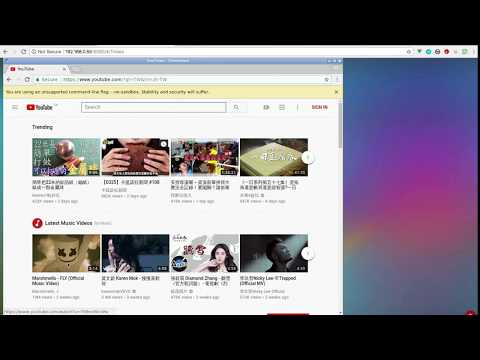
Launch a browser with URL http://127.0.0.1:6080/#/?video, where video means to start with video mode. Now you can start Chromium in start menu (Internet -> Chromium Web Browser Sound) and try to play some video.
Following is the screen capture of these operations. Turn on your sound at the end of video!
Generate Dockerfile from jinja template
WARNING: Deprecated
Dockerfile and configuration can be generated by template.
- arch: one of
amd64orarmhf - flavor: refer to file in flavor/
flavor.yml - image: base image
- desktop: desktop environment which is set in flavor
- addon_package: Debian package to be installed which is set in flavor
Dockerfile and configuration are re-generate if they do not exist. Or you may force to re-generate by removing them with the command make clean.
Troubleshooting and FAQ
- boot2docker connection issue, https://github.com/fcwu/docker-ubuntu-vnc-desktop/issues/2
- Multi-language supports, https://github.com/fcwu/docker-ubuntu-vnc-desktop/issues/80
- Autostart, https://github.com/fcwu/docker-ubuntu-vnc-desktop/issues/85#issuecomment-466778407
- x11vnc arguments(multiptr), https://github.com/fcwu/docker-ubuntu-vnc-desktop/issues/101
- firefox/chrome crash (/dev/shm), https://github.com/fcwu/docker-ubuntu-vnc-desktop/issues/112
- resize display size without destroying container, https://github.com/fcwu/docker-ubuntu-vnc-desktop/issues/115#issuecomment-522426037
License
See the LICENSE file for details.
New
Failing to generate a key using the below path will cause the key to delete after a routine update to the cluster. After the upgrade, use the command above to generate a new key for it to be persistent
ENV Vars USER PASSWORD RESOLUTION TZ DOMAIN? MENU_NAME MENU_ICON SHOW_MENU_ICONS SHOW_TOOLTIPS SHOW_GENERIC_NAMES
set docker group id to the host group id