| image | ||
| screenshots | ||
| Dockerfile | ||
| LICENSE | ||
| Makefile | ||
| README.md | ||

docker-ubuntu-vnc-desktop



Docker image to provide HTML5 VNC interface to access Ubuntu 16.04 LXDE desktop environment.
Quick Start
Run the docker image and open port 6080
docker run -it --rm -p 6080:80 dorowu/ubuntu-desktop-lxde-vnc
Browse http://127.0.0.1:6080/
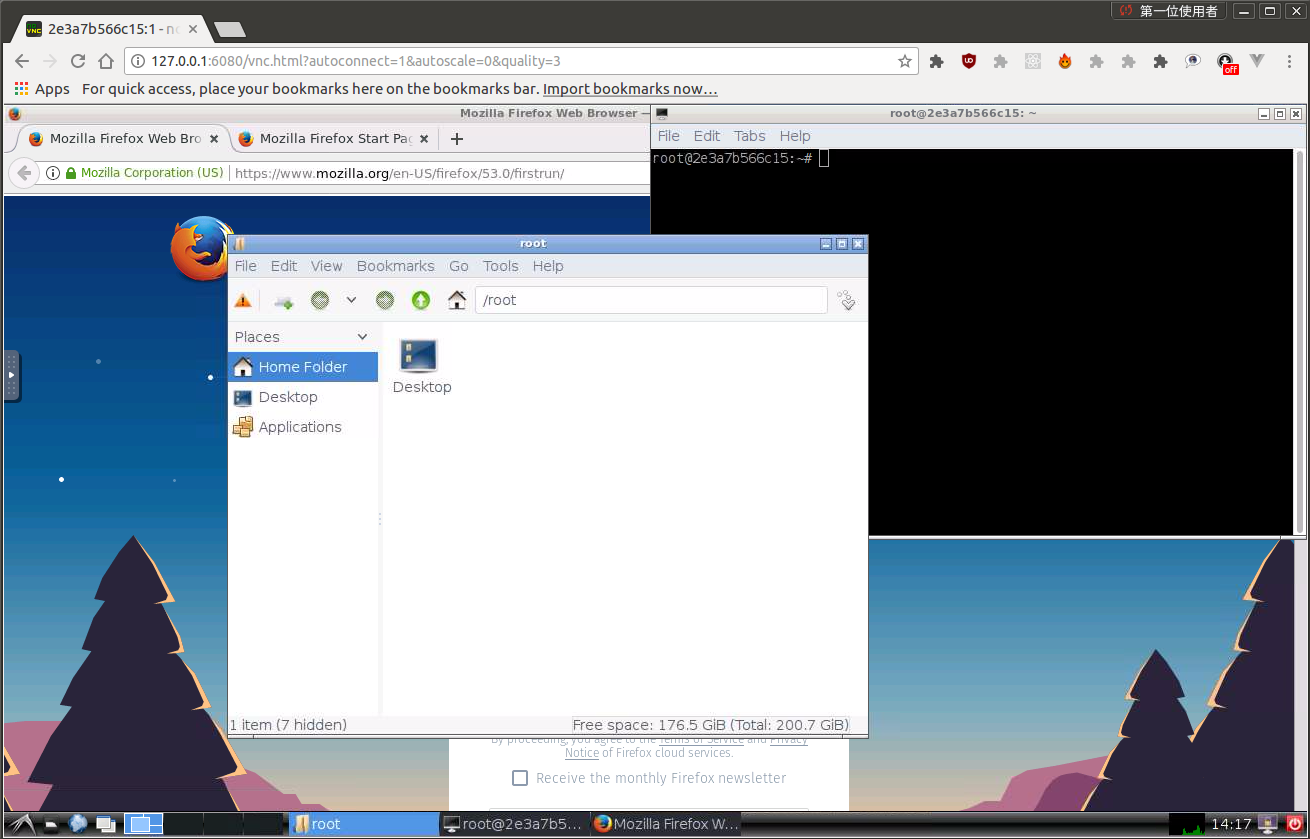
Connect with VNC Viewer and protect by VNC Password
Forward VNC service port 5900 to host by
docker run -it --rm -p 6080:80 -p 5900:5900 dorowu/ubuntu-desktop-lxde-vnc
Now, open the vnc viewer and connect to port 5900. If you would like to protect vnc service by password, set environment variable VNC_PASSWORD, for example
docker run -it --rm -p 6080:80 -p 5900:5900 -e VNC_PASSWORD=mypassword dorowu/ubuntu-desktop-lxde-vnc
A prompt will ask password either in the browser or vnc viewer.
Screen Resolution
The Resolution of virtual desktop adapts browser window size when first connecting the server. You may choose a fixed resolution by passing RESOLUTION environment variable, for example
docker run -it --rm -p 6080:80 -e RESOLUTION=1920x1080 dorowu/ubuntu-desktop-lxde-vnc
Default User
The default user is root. You may change the user and password respectively by USER and PASSWORD environment variable, for example,
docker run -it --rm -p 6080:80 -e USER=doro -e PASSWORD=password dorowu/ubuntu-desktop-lxde-vnc
Troubleshooting and FAQ
- boot2docker connection issue, https://github.com/fcwu/docker-ubuntu-vnc-desktop/issues/2
License
See the LICENSE file for details.